Convert PDF to JPG Online Without Losing Quality – 2026 Guide
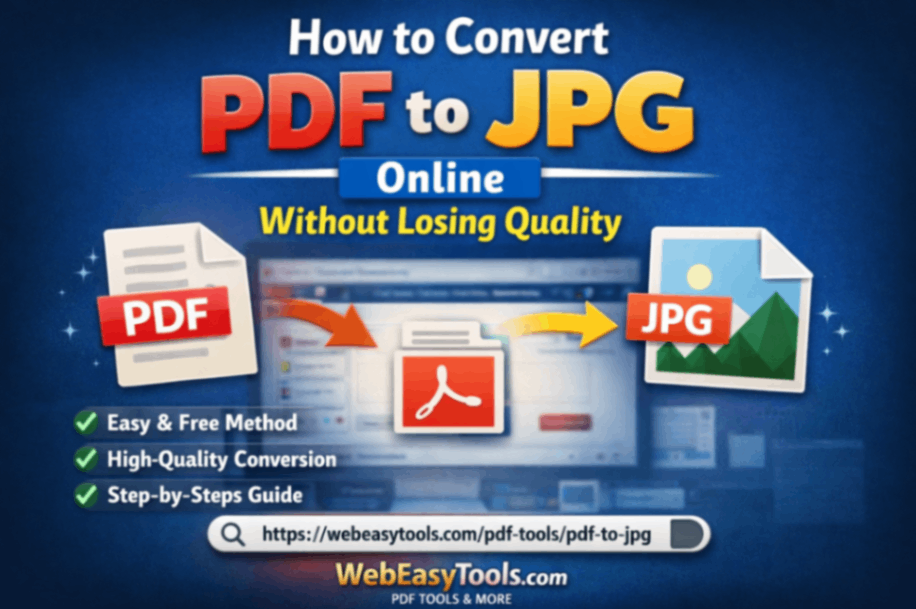
Convert PDF to JPG Online Without Losing Quality (2026 Guide)
PDF to JPG converterExecutive Summary: Converting PDF to JPG is now easy. In this guide, we'll learn how to convert your PDF documents to JPG images without losing quality. We'll cover high-DPI settings, color options, and the best tools to ensure every image looks crisp. We'll also cover common FAQs to help clear up any doubts.
Step-by-Step Guide: How to Convert PDF to JPG Online
The process of converting PDF to JPG using online tools is simple. Follow the steps below:
- Select Pdf file: First select the PDF file. Popular converters allow drag-and-drop or click-and-select file button uploading.
- Set output format: Select JPG as the output format. Some tools let you choose whether to extract just the images or create a full page image.
- Select DPI and Quality: Setting the DPI (dots per inch) is crucial. Use 300 DPI or 600 DPI for high resolution. A higher DPI results in sharper and more detailed JPG images. Ensure the converter is using the highest available DPI.
- Click the Convert button: After selecting Settings, click the Convert button. The tool will process your PDF and generate JPG images (depending on internet speed).
- Download Images: A download link will be provided after conversion. Save JPG images to your device. For multi-page PDFs, a ZIP file containing all the images can be downloaded.
Best Practices: How to Avoid Quality Loss
- Choose a High DPI: Always select a high DPI. A DPI above 300 (such as 600) will result in more detail in the output.
- Preserve Original Size: If the images in the PDF are already high-resolution, ensure the converter doesn't scale them down. Some tools offer "Maintain original size" or "Keep dimensions" options.
- Color Mode: JPG is the RGB color mode for the web. If your PDF was created in CMYK for print, ensure the output is in the sRGB color space during conversion, otherwise colors may change.
- High Quality JPG: JPG is a lossy format, which causes some data loss. Keep the quality slider high (90-100) in the converter to minimize compression. This will keep the image crisp.
Other Conversion Methods
Online Converters: These are the most convenient, requiring no software. Upload a PDF and get a JPG. Reputed sites keep your files secure by using TLS encryption. For example, Smallpdf's converter keeps images at their original resolution, resulting in "crisp and clear" output.
Desktop Software: Programs like Adobe Acrobat Pro, PDFelement, and GIMP offer manual controls. You can set DPI, color profiles, and compression settings. These work offline, but require software installation.
Screenshots: You can also take a screenshot of a PDF page (Print Screen), but this can compromise quality. Screenshots are taken at a lower resolution, and zooming in can result in a jagged blur. Only use this if you need a quick snapshot.
Recommended Settings: DPI, Color, Compression
- DPI (Dots per Inch): Use at least 300 DPI for printing or detailed views. 600 DPI is also acceptable for printing. 72-150 DPI is fine for screen viewing. Higher DPI will result in a larger output file, but the quality is best.
- Color Profile: JPGs are usually RGB. If the PDF contains CMYK images, ensure the converter outputs sRGB to ensure accurate colors.
- JPG Compression: JPG quality is set on a 0-100 scale. Use a high value (90-100) for the best quality. For example, setting the quality to 100% results in minimal loss, but the file size will be slightly larger.
Troubleshooting Common Issues
- Blurry output: If the JPG is blurry, first check the DPI. Converting at a low DPI will blur the image. Try again with a higher DPI. Ensure the original PDF had a high image resolution.
- Partial Conversion: Multi-page PDFs can sometimes skip some pages. Choose tools that allow you to set a page range, or upload pages one by one.
- Color Shifts: If the colors are blurry (e.g., blue instead of pink), there's a color profile issue. Convert with a reliable converter that uses sRGB. Select "Use RGB" if it's a built-in option.
- File Too Large: A very high DPI increases the file size. If the conversion fails or the upload limit is exceeded, lower the DPI slightly. Or, you can reduce the file size with a JPG compressor tool after conversion.
FAQs (Frequently Asked Questions)
- Q: Is there any quality loss when converting a PDF to JPG?
A: Yes, there is a slight loss because JPG is a lossy format. But high DPI and high quality settings generally keep images crisp. The only difference is when converting text or vector elements to raster. - Q: What is the best DPI setting?
A: 72-150 DPI is fine for web or screen, but don't go below 300 DPI for printing. Use 600 DPI if you want very detailed output. - Q: How do I convert a multi-page PDF to a single JPG?
A: Often, each page is a separate JPG. If you want a single image, use an image editor tool to merge the pages, or split the PDF first and then handle the pages. - Q: When should I use PNG over JPG?
A: PNG is a lossless format, with no quality loss. If you need exact detail of text/images, PNG is better. But PNG files are very large, so JPG is more practical for photos. - Q: Which converter is safe?
A: Trusted online tools like our converter are safe. They use TLS encryption and delete files after conversion. Only convert from a reputable site.
Conclusion
So friends, follow these simple steps and best practices to convert PDF to JPG without quality loss. High DPI and proper color settings will keep images crisp. Online converters allow you to do this instantly. Using our PDF to JPG converter, you can experience a free and secure conversion. Try it out and get your PDF files as high-quality JPG images!